Geprüft am Prototyp im Reiter „Lernmaterialien“ der Demoanwendung und mit einem Import in Moodle 4.5 am 14.10.2026. So kommt man hin: In der Demoanwendung unter den Übersichtskarten den Reiter „Lernmaterialien“ öffnen.
Ergebnis
- Machbar, und zwar ohne Server. Eine Lehrkraft sammelt zu einer
Rückmeldung Material, je Kompetenzstufe oder je Gruppe. Diese Sammlung gibt
die Demoanwendung auf zwei Wegen aus: als Common Cartridge (
.imscc) für die Lernplattform und als PDF für Papier und Ablage. Beide Dateien entstehen im Browser, keine Angabe aus der Rückmeldung verlässt dafür das Gerät. - Der Import in Moodle ging erst nach einer Korrektur. In der Fassung, mit der der Prototyp gebaut wurde, lehnte Moodle die Cartridge ab. Sie trug die Kennung von Common Cartridge 1.3, die Moodle nicht kennt, und das Manifest verstieß gegen das Schema. Beides ist behoben: Die Demoanwendung schreibt jetzt Common Cartridge 1.1, und Moodle legt daraus ohne Nacharbeit einen Kurs an.
- Die Cartridge transportiert Gliederung und Verweise, nicht das Material selbst. In Moodle kommt je Kompetenzstufe eine Zwischenüberschrift an und je Material eine Textseite mit Beschreibung und Link. Dateien, interaktive Aufgaben oder Videos stecken nicht darin, denn die Demoanwendung kennt sie selbst nur als Verweis.
- Das PDF ist der robustere Weg. Es braucht keine Lernplattform und keine Rechte darin und liest sich auch ohne Anwendung. Dafür kann man darin nichts weiterbearbeiten.
Die Fragestellung
Eine Rückmeldung zeigt, wo eine Lerngruppe steht. Daraus folgt eine Auswahl an Material: Übungen für die Gruppe auf Stufe II, Fördermaterial für Stufe I, etwas zur Vertiefung für Stufe IV. Gearbeitet wird mit diesem Material aber nicht in der Rückmeldung, sondern in der Lernplattform der Schule oder auf Papier.
Untersucht wurde, ob sich eine solche Sammlung so übergeben lässt, dass sie dort ohne Abtippen ankommt und ihre Ordnung behält, also welches Material zu welcher Stufe gehört.
Material sammeln
Gesammelt wird im Reiter „Lernmaterialien“. Er kennt drei Modi, und alle drei schreiben in dieselbe Ablage, aus der später exportiert wird.
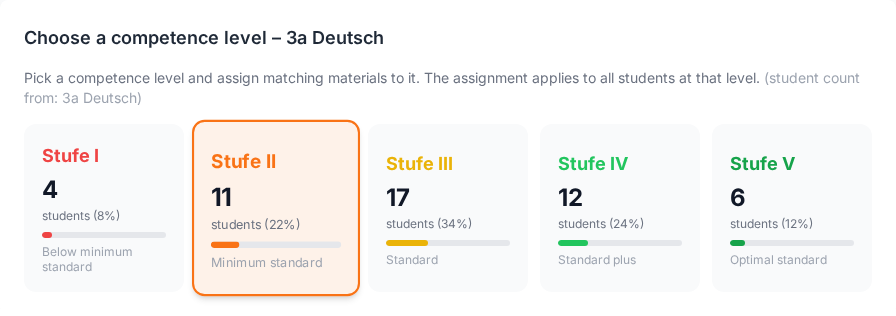
Nach Kompetenzstufe. Die Lehrkraft wählt eine Stufe. Die Kacheln zeigen,
wie viele Schüler:innen der gewählten Gruppe dort liegen; die Zahlen kommen aus
der Schnittstelle (/competence-levels).
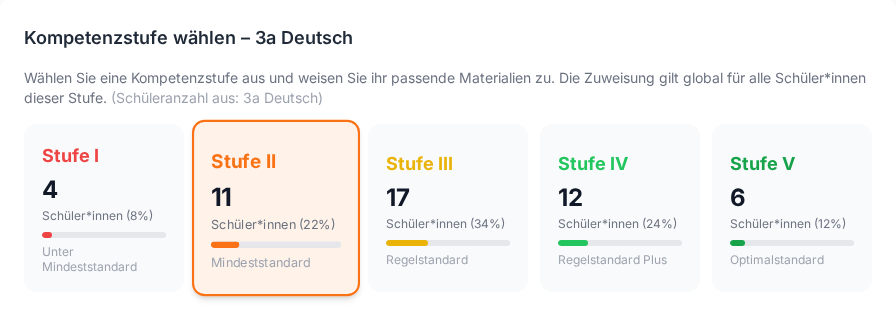
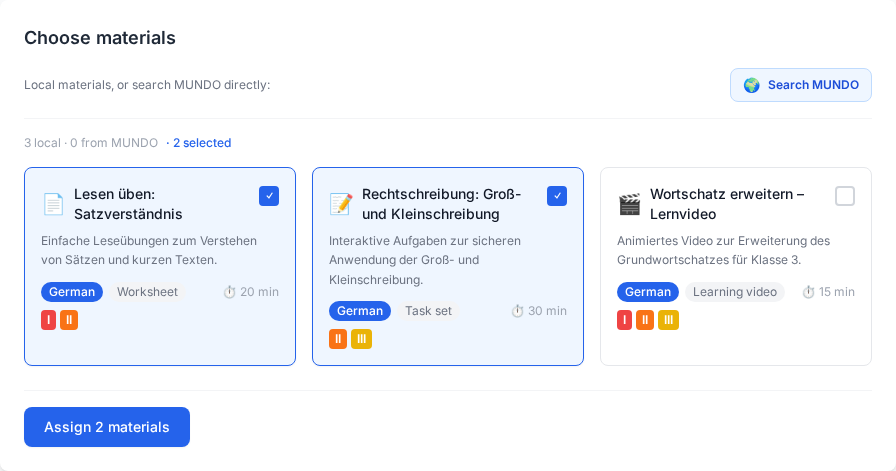
Darunter stehen die Materialien, die zu dieser Stufe passen. Ein Klick auf eine Karte wählt sie aus, ein zweiter nimmt die Wahl zurück. Zugewiesen wird erst mit dem Knopf darunter. Über „MUNDO Suche“ kommt Material aus der Mediathek dazu; wie das funktioniert, beschreibt die Seite Mediatheken einbinden.
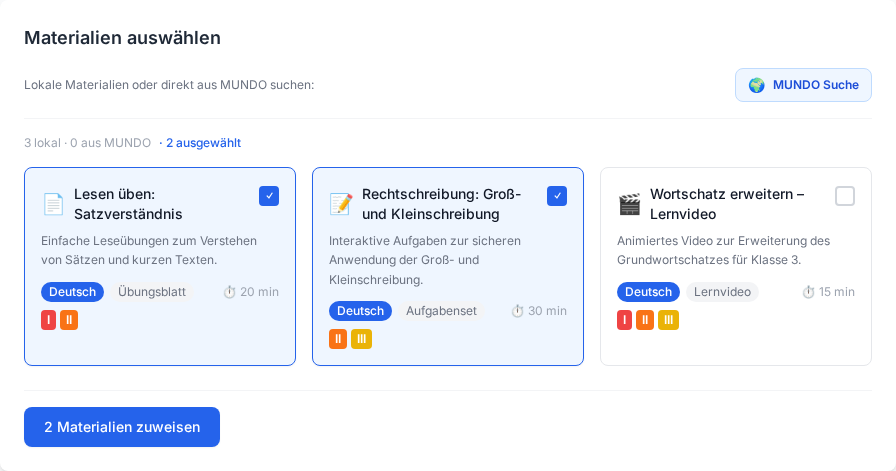
Nach Gruppe. Statt an eine Stufe hängt das Material an eine eigene Gruppe, die die Lehrkraft vorher im Reiter „Schüler*innen“ angelegt hat, etwa eine Fördergruppe aus fünf Namen.
Aus der Schnittstelle. Der Entwurf /materials liefert Material, das schon
beim Erstellen des Tests an Stufen, Kompetenzen oder Aufgaben gehängt wurde. Was
dort eindeutig einer Stufe zugeordnet ist, übernimmt die Anwendung auf Knopfdruck.
Die Zuordnungen liegen im localStorage des Browsers (tba3_materials_by_level,
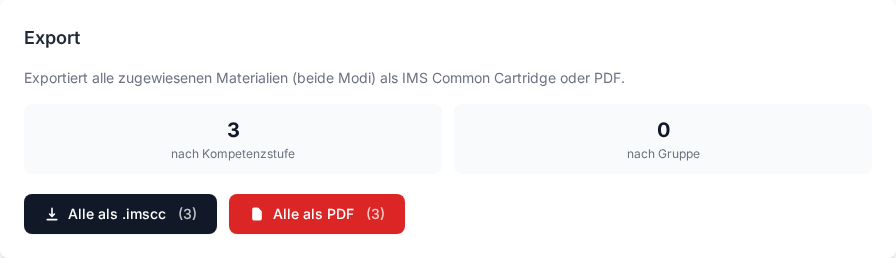
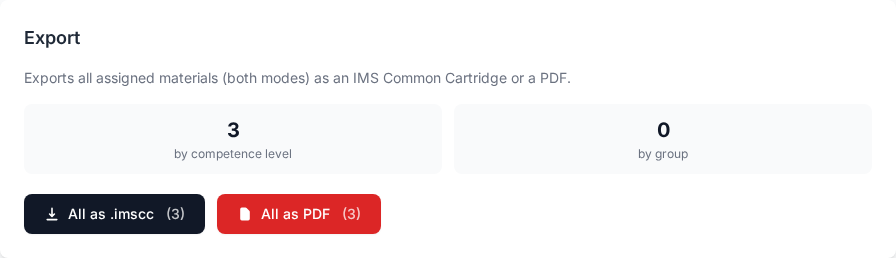
tba3_external_materials). Der Export-Kasten am Ende des Reiters zählt, was
zusammengekommen ist, und bietet die beiden Ausgaben an.
Weg 1: Common Cartridge für die Lernplattform
Was ist Common Cartridge?
IMS Common Cartridge ist ein offener Standard von 1EdTech (vormals IMS Global)
für den Austausch von Kursinhalten zwischen Lernplattformen. Eine Cartridge ist
ein ZIP-Archiv mit der Endung .imscc. Darin liegen die Inhalte und eine Datei
imsmanifest.xml, die sie gliedert. Moodle, Canvas, itslearning und weitere
Plattformen können Cartridges importieren, unterstützen aber nicht alle
Versionen und nicht alle Inhaltsarten.
Was die Demoanwendung hineinschreibt
Erzeugt wird die Datei in apps/demo/src/utils/commonCartridgeExport.js, mit
JSZip, das erst beim Klick nachgeladen wird. Für die Auswahl oben (zwei
Materialien und ein MUNDO-Treffer auf Stufe II, eines auf Stufe III) sieht das
Archiv so aus:
tba3_alle_klassen_2026-10-14.imscc
├── imsmanifest.xml
└── content/__level_export__/
    ├── stufe_II/
    │   ├── mat-de-v3-01.html
    │   ├── mat-de-v3-02.html
    │   └── mundo-1791964302358-tjskw.html
    └── stufe_III/
        └── mat-de-v3-02.html
Jedes Material wird zu einer eigenen HTML-Seite mit Titel, Art, Dauer, Fach, Klassenstufe, Ziel-Kompetenzstufen, Beschreibung und Direktlink. Das Manifest ordnet die Seiten in drei Ebenen: Gruppe, Kompetenzstufe, Material.
<manifest identifier="tba3_cc_export"
  xmlns="http://www.imsglobal.org/xsd/imsccv1p1/imscp_v1p1" …>
  <metadata>
    <schema>IMS Common Cartridge</schema>
    <schemaversion>1.1.0</schemaversion>
    <lom:lom …>  <!-- Titel, Sprache, Beschreibung -->
  </metadata>
  <organizations>
    <organization identifier="tba3_org" structure="rooted-hierarchy">
      <item identifier="root">
        <item identifier="org_group___level_export__">
          <title>Nach Kompetenzstufe</title>
          <item identifier="org___level_export___level_II">
            <title>Kompetenzstufe II  –  Mindeststandard</title>
            <item identifierref="res___level_export___II_mat-de-v3-01">
              <title>Lesen üben: Satzverständnis</title>
            </item>
            …
  <resources>
    <resource identifier="res___level_export___II_mat-de-v3-01"
              type="webcontent"
              href="content/__level_export__/stufe_II/mat-de-v3-01.html">
      <file href="content/__level_export__/stufe_II/mat-de-v3-01.html"/>
    </resource>
    …
Beschriftungen und Seiten folgen der Sprache, die beim Klick eingestellt ist. Die Titel der Materialien kommen aus den Daten und bleiben, wie sie sind.
Der Test in Moodle
Für die Studie wurde Moodle 4.5.4 lokal in Docker aufgesetzt (Abbilder
bitnamilegacy/moodle:4.5 und bitnamilegacy/mariadb:11.4). Importiert wurde
über Moodles Wiederherstellung, die Cartridges vor dem Import in ein
Moodle-Backup umwandelt. Eine Lehrkraft geht denselben Weg über
Kurs → Mehr → Wiederherstellen. In der Grundeinstellung darf die Rolle
„Trainer/in“ das im eigenen Kurs, ein Admin ist dafür nicht nötig.
Der erste Versuch mit der Datei des Prototyps scheiterte zweimal:
| Schritt | Meldung von Moodle | Ursache |
|---|---|---|
| Format erkennen | „Format: unknown“, der Import bricht ab | Das Manifest trug den Namensraum von Common Cartridge 1.3. Moodle 4.5 erkennt nur 1.0 und 1.1 (backup/converter/imscc1, imscc11). |
| Schema prüfen, nach Umstellen auf 1.1 | Element 'title': This element is not expected. Expected is one of (item, metadata) |
Die <organization> trug einen eigenen <title>. Das Schema verlangt dort genau ein Wurzel-<item>. |
Beides ist jetzt im Export behoben: die Kennung von 1.1 statt 1.3 und ein
Wurzel-item ohne Titel. Mit 1.1 geht nichts verloren, denn die Cartridge
enthält nur Webseiten und eine Gliederung, und dafür reicht diese Fassung
vollständig. Ein Unit-Test
(apps/demo/src/utils/__tests__/commonCartridgeExport.test.js) hält beides
fest. Danach importierte Moodle die unveränderte Datei aus der
Demoanwendung, auf Deutsch wie auf Englisch:
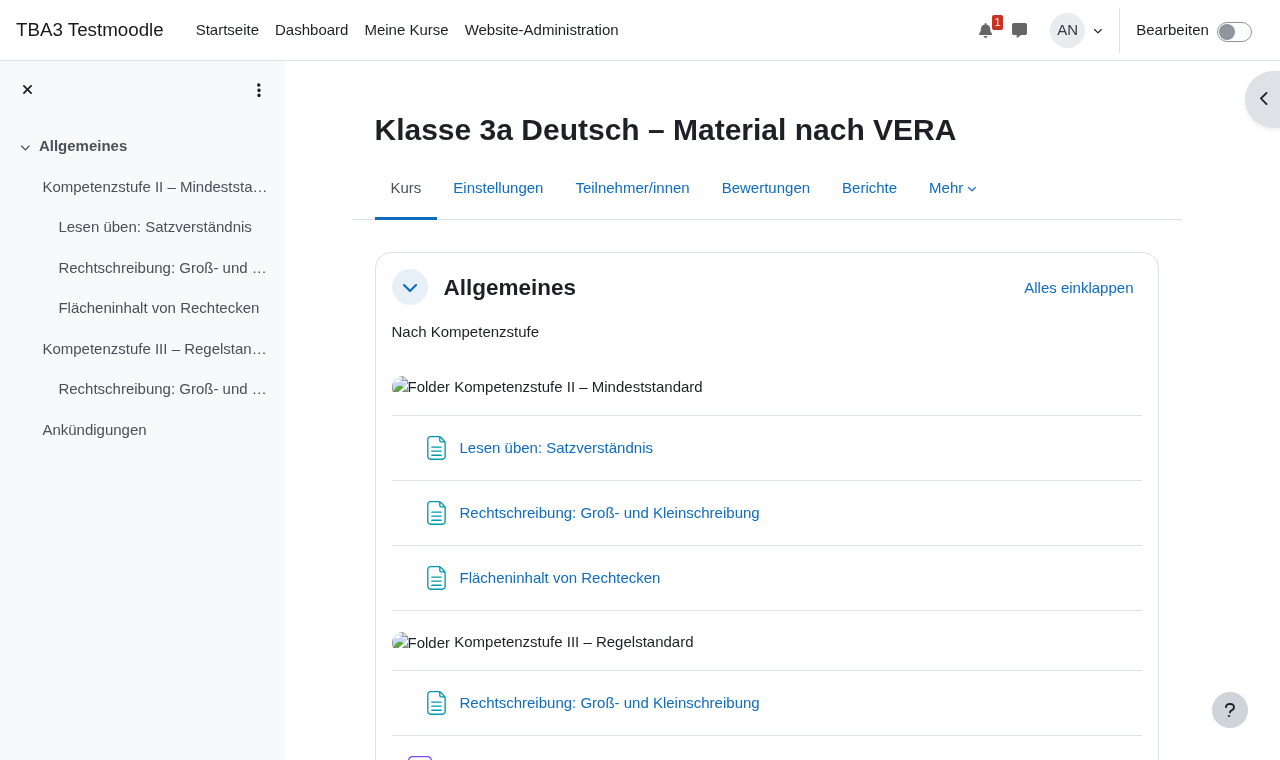
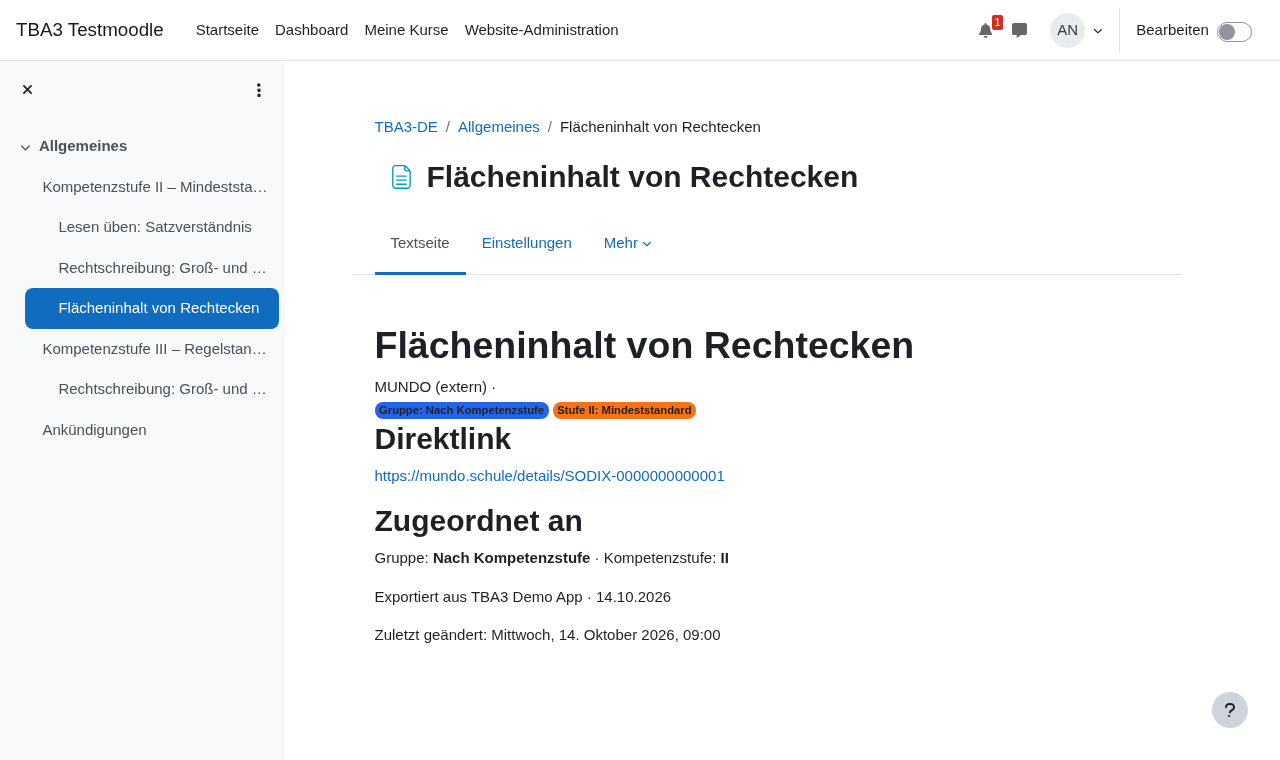
| In der Cartridge | In Moodle |
|---|---|
Gruppe (Nach Kompetenzstufe) |
Textzeile oben im Abschnitt „Allgemeines“ |
| Kompetenzstufe | Textfeld (Label) als Zwischenüberschrift |
Material (webcontent, HTML) |
Aktivität „Textseite“ |
| LOM-Titel und -Beschreibung | werden nicht angezeigt |
Vor einem Einsatz zu glätten, den Import verhindern sie nicht:
- Alles landet in einem Abschnitt. Moodle macht aus den Gliederungsebenen keine Kursabschnitte, sondern Zwischenüberschriften in „Allgemeines“.
- Vor jeder Stufe steht „Folder“. Moodles Konverter setzt ein Ordnersymbol vor das Label, dessen Bild in Moodle 4.5 fehlt. Zu sehen ist deshalb der Ersatztext. Das liegt an Moodle, nicht an der Cartridge.
- Die Gestaltung der Seiten geht zum Teil verloren. Moodle übernimmt den Inhalt der Seiten, aber nicht ihr eingebettetes Stylesheet. Die farbigen Etiketten bleiben, Abstände und Kästen nicht.
Andere Lernplattformen (itslearning, Canvas, ILIAS, die Lernplattformen der Länder) wurden nicht getestet. Common Cartridge 1.1 gilt als die am breitesten unterstützte Fassung, ein Import ist dort also wahrscheinlich, aber nicht belegt.
Was die Cartridge nicht leistet
- Sie enthält das Material nicht. Jede Seite verweist auf ein Material, das woanders liegt. Bei MUNDO ist das die Detailseite in der Mediathek, bei den Beispielmaterialien der Demoanwendung eine Platzhalteradresse. Eine Cartridge kann auch Dateien und Aufgaben (QTI) tragen, aber dafür müsste die Anwendung das Material selbst besitzen.
- Sie nennt im Stufenmodus keine Lerngruppe. Die Gruppe heißt dann „Nach Kompetenzstufe“, nicht „3a Deutsch“. Den Kursnamen vergibt die Lehrkraft beim Import.
- Sie weist niemandem etwas zu. Die Stufen werden in Moodle zu Überschriften, nicht zu Gruppen. Wer welches Material bekommt, muss die Lehrkraft dort noch einmal festlegen, zum Beispiel über Gruppen und Voraussetzungen. Personenbezogene Daten stehen dafür bewusst nicht in der Datei.
- Sie ist eine Kopie. Ändert sich die Zuordnung in der Rückmeldung, bleibt der Kurs, wie er importiert wurde. Eine laufende Verbindung zwischen Rückmeldung und Lernplattform wäre LTI, nicht Common Cartridge.
Weg 2: PDF für Papier und Ablage
Derselbe Export-Kasten erzeugt ein PDF: eine Seite je Gruppe, darin die Materialien nach Kompetenzstufe, jedes als Karte mit Art, Dauer, Beschreibung, Ziel-Stufen, Adresse und QR-Code. Das PDF entsteht mit jsPDF im Browser, ebenfalls erst beim Klick geladen.
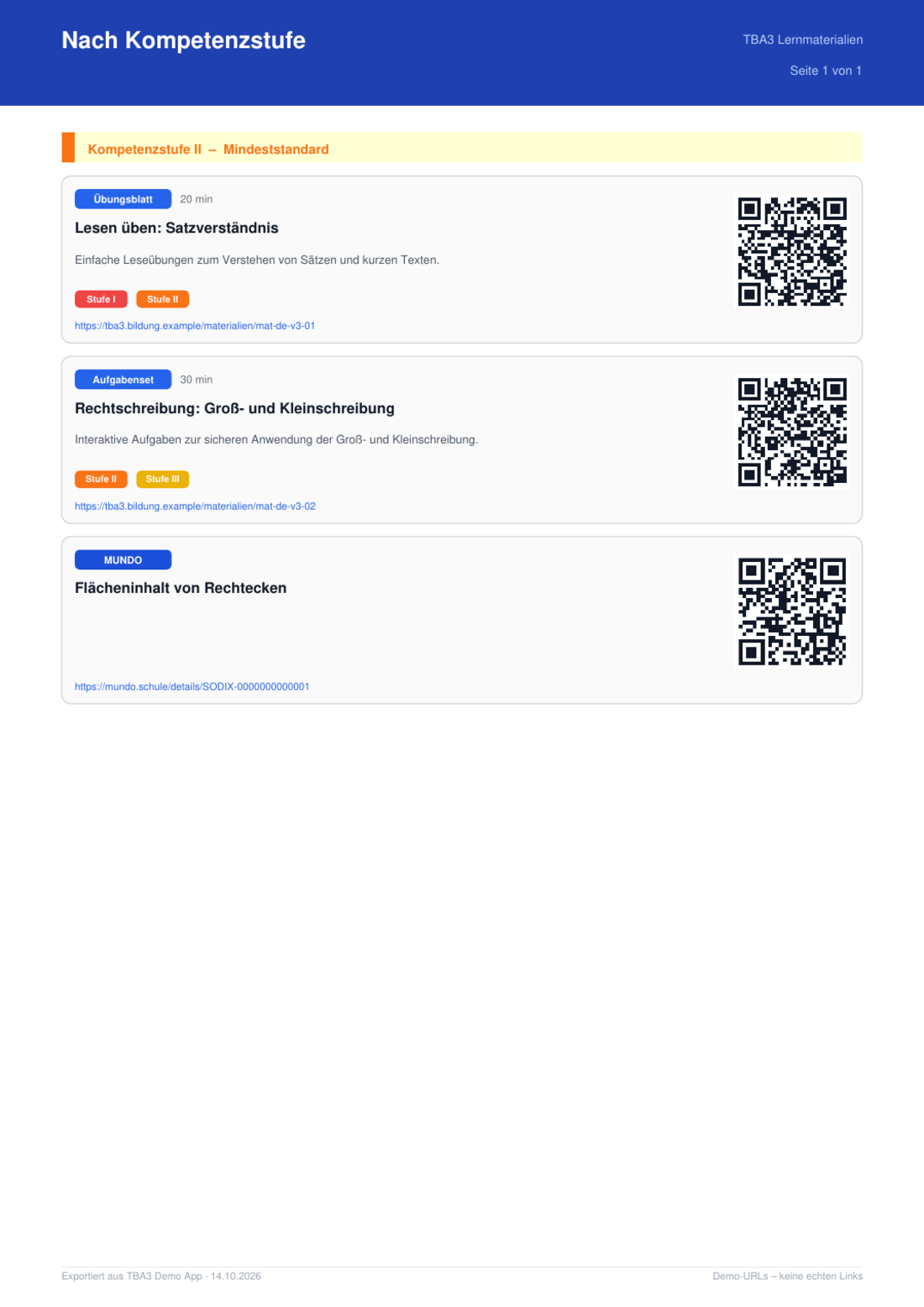
Das PDF ist für die Elternsprechstunde, den Ordner der Klassenleitung oder die Kollegin gedacht, die keinen Zugang zur Rückmeldung hat. Es braucht keine Lernplattform und keine Rechte darin. Der QR-Code bringt Schüler:innen vom Arbeitsblatt zum Material. Wie die Datei gebaut ist (Schrift, Seitenumbruch, QR-Codes, warum nichts davon auf einem Server passiert), steht ausführlich in den Rezepten der Demoanwendung.
Daneben gibt es ein zweites PDF, die individuelle Rückmeldung für eine einzelne Person aus dem Datenblatt im Reiter „Schüler*innen“. Sie enthält die erreichte Stufe, die Ergebnisse nach Teilbereich und die passenden Materialien.
Beide Wege nebeneinander
| Common Cartridge | ||
|---|---|---|
| Für | die Lernplattform | Papier, Ablage, Weitergabe |
| Datei | .imscc (ZIP mit Manifest und HTML-Seiten) |
.pdf, eine Seite je Gruppe |
| Ordnung | Gruppe → Kompetenzstufe → Material, in Moodle als Überschriften | Gruppe → Kompetenzstufe → Material, als Abschnitte |
| Material | als Seite mit Link, nicht das Material selbst | als Karte mit Link und QR-Code |
| Weiterbearbeiten | ja, im Kurs der Lernplattform | nein |
| Braucht | Rechte zum Wiederherstellen im Kurs | nichts |
| Geprüft | Import in Moodle 4.5 | E2E-Test: Datei kommt an |
| Personenbezug | keiner | keiner (die individuelle Rückmeldung trägt den Namen) |
Was daraus folgt
- Die Übergabe an die Lernplattform ist mit einem offenen Standard machbar, ohne Schnittstelle zur Plattform und ohne Server. Für Moodle ist das jetzt belegt.
- Common Cartridge 1.1 ist die richtige Fassung. Die neuere 1.3 bringt für diese Inhalte nichts und schließt Moodle aus. Wer den Export weiterbaut, prüft jede Änderung mit einem echten Import, denn eine Cartridge, die nur wohlgeformt ist, kann trotzdem abgelehnt werden.
- Besser würde die Cartridge mit Weblinks statt Seiten. Common Cartridge
kennt eigene Weblink-Ressourcen (
imswl), die Moodle als Aktivität „Link/URL“ anlegt. Dann führt ein Klick direkt zum Material statt erst auf eine Seite mit einem Link. Die Zuordnung zur Stufe ginge dabei nicht verloren, denn die Stufe steht schon in der Gliederung. - Den Namen der Lerngruppe sollte der Export mitgeben. „Nach Kompetenzstufe“ als Gruppenname ist eine Eigenheit der Demoanwendung, keine Grenze des Formats.
- Erst mit Material, das die Anwendung selbst besitzt, trägt die Cartridge Inhalt. Das ist dieselbe Grenze wie bei den Mediatheken: Solange Material nur als Verweis bekannt ist, kann auch die beste Übergabe nur Verweise übergeben.
Examined in the prototype in the "Learning materials" tab of the demo application and with an import into Moodle 4.5 on 14 October 2026. How to get there: in the demo application, open the "Learning materials" tab below the overview cards.
Result
- Feasible, and with no server involved. A teacher collects material for a
report, per competence level or per group. The demo application outputs this
collection in two ways: as a Common Cartridge (
.imscc) for the learning platform and as a PDF for paper and filing. Both files are created in the browser; nothing from the report leaves the device for this. - The import into Moodle only worked after a correction. In the version the prototype was built with, Moodle rejected the cartridge. It carried the identifier of Common Cartridge 1.3, which Moodle does not know, and the manifest violated the schema. Both are fixed: the demo application now writes Common Cartridge 1.1, and Moodle creates a course from it without any rework.
- The cartridge carries the structure and the links, not the material itself. In Moodle, each competence level arrives as a heading and each material as a page with description and link. Files, interactive tasks or videos are not included, because the demo application itself knows them only as references.
- The PDF is the more robust route. It needs no learning platform and no permissions there, and it can be read without the application. In return, nothing in it can be edited further.
The research question
A report shows where a learning group stands. A selection of material follows from it: exercises for the group at level II, support material for level I, something to go deeper for level IV. But the work with this material does not happen in the report. It happens in the school's learning platform or on paper.
The question was whether such a collection can be handed over so that it arrives there without retyping and keeps its order, that is, which material belongs to which level.
Collecting material
Collecting happens in the "Learning materials" tab. It has three modes, and all three write to the same store from which the export is made.
By competence level. The teacher picks a level. The tiles show how many
students of the selected group are at that level; the numbers come from the
API (/competence-levels).
Below are the materials that fit this level. One click on a card selects it, a second click deselects it. Nothing is assigned until the button below is pressed. "Search MUNDO" adds material from the media library; how that works is described on the page Integrating media libraries.
By group. Instead of a level, the material is attached to a custom group the teacher created beforehand in the "Students" tab, such as a support group of five names.
From the API. The /materials draft delivers material that was attached
to levels, competences or tasks when the test was created. Whatever is
unambiguously assigned to a level there, the application takes over at the
press of a button.
The assignments live in the browser's localStorage
(tba3_materials_by_level, tba3_external_materials). The export box at the
end of the tab counts what has been collected and offers the two outputs.
Route 1: Common Cartridge for the learning platform
What is Common Cartridge?
IMS Common Cartridge is an open standard by 1EdTech (formerly IMS Global) for
exchanging course content between learning platforms. A cartridge is a ZIP
archive with the extension .imscc. It contains the content and a file
imsmanifest.xml that structures it. Moodle, Canvas, itslearning and other
platforms can import cartridges, but they do not all support every version or
every kind of content.
What the demo application writes into it
The file is created in apps/demo/src/utils/commonCartridgeExport.js with
JSZip, which is only loaded on click. For the selection above (two materials
and one MUNDO hit at level II, one at level III) the archive looks like this:
tba3_alle_klassen_2026-10-14.imscc
├── imsmanifest.xml
└── content/__level_export__/
    ├── stufe_II/
    │   ├── mat-de-v3-01.html
    │   ├── mat-de-v3-02.html
    │   └── mundo-1791964302358-tjskw.html
    └── stufe_III/
        └── mat-de-v3-02.html
Each material becomes an HTML page of its own with title, type, duration, subject, grade, target competence levels, description and direct link. The manifest arranges the pages in three levels: group, competence level, material.
<manifest identifier="tba3_cc_export"
  xmlns="http://www.imsglobal.org/xsd/imsccv1p1/imscp_v1p1" …>
  <metadata>
    <schema>IMS Common Cartridge</schema>
    <schemaversion>1.1.0</schemaversion>
    <lom:lom …>  <!-- title, language, description -->
  </metadata>
  <organizations>
    <organization identifier="tba3_org" structure="rooted-hierarchy">
      <item identifier="root">
        <item identifier="org_group___level_export__">
          <title>By competence level</title>
          <item identifier="org___level_export___level_II">
            <title>Competence level II  –  Minimum standard</title>
            <item identifierref="res___level_export___II_mat-de-v3-01">
              <title>Lesen üben: Satzverständnis</title>
            </item>
            …
  <resources>
    <resource identifier="res___level_export___II_mat-de-v3-01"
              type="webcontent"
              href="content/__level_export__/stufe_II/mat-de-v3-01.html">
      <file href="content/__level_export__/stufe_II/mat-de-v3-01.html"/>
    </resource>
    …
Labels and pages follow the language set at the moment of the click. The titles of the materials come from the data and stay as they are.
The test in Moodle
For the study, Moodle 4.5.4 was set up locally in Docker (images
bitnamilegacy/moodle:4.5 and bitnamilegacy/mariadb:11.4). The import went
through Moodle's restore, which converts cartridges into a Moodle backup before
importing. A teacher takes the same route via Course → More → Restore. In
the default configuration the "Teacher" role may do this in their own course;
no admin is needed.
The first attempt with the prototype's file failed twice:
| Step | Moodle's message | Cause |
|---|---|---|
| Detecting the format | "Format: unknown", the import stops | The manifest carried the namespace of Common Cartridge 1.3. Moodle 4.5 only recognises 1.0 and 1.1 (backup/converter/imscc1, imscc11). |
| Checking the schema, after switching to 1.1 | Element 'title': This element is not expected. Expected is one of (item, metadata) |
The <organization> carried a <title> of its own. The schema requires exactly one root <item> there. |
Both are now fixed in the export: the identifier of 1.1 instead of 1.3, and a
root item without a title. Nothing is lost with 1.1, because the cartridge
contains only web pages and a structure, and this version covers that
completely. A unit test
(apps/demo/src/utils/__tests__/commonCartridgeExport.test.js) pins both.
After that, Moodle imported the unmodified file from the demo application,
in German and in English:
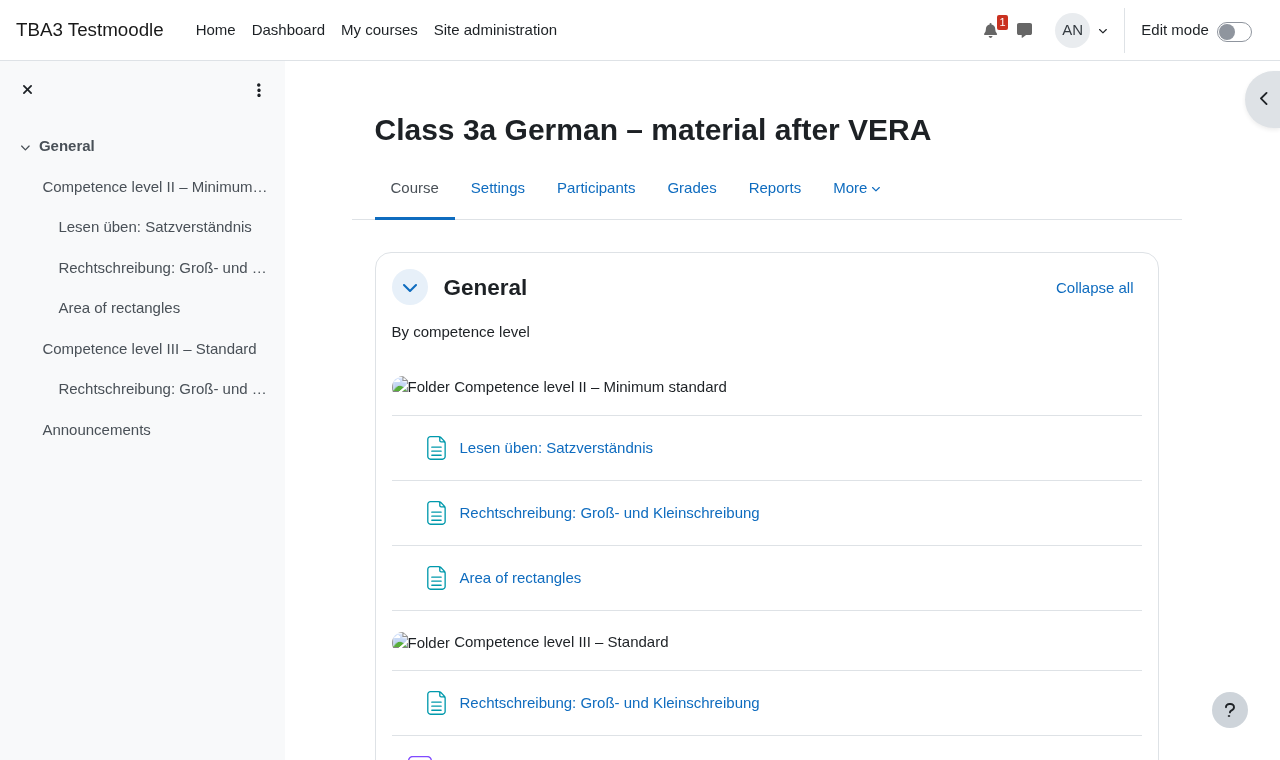
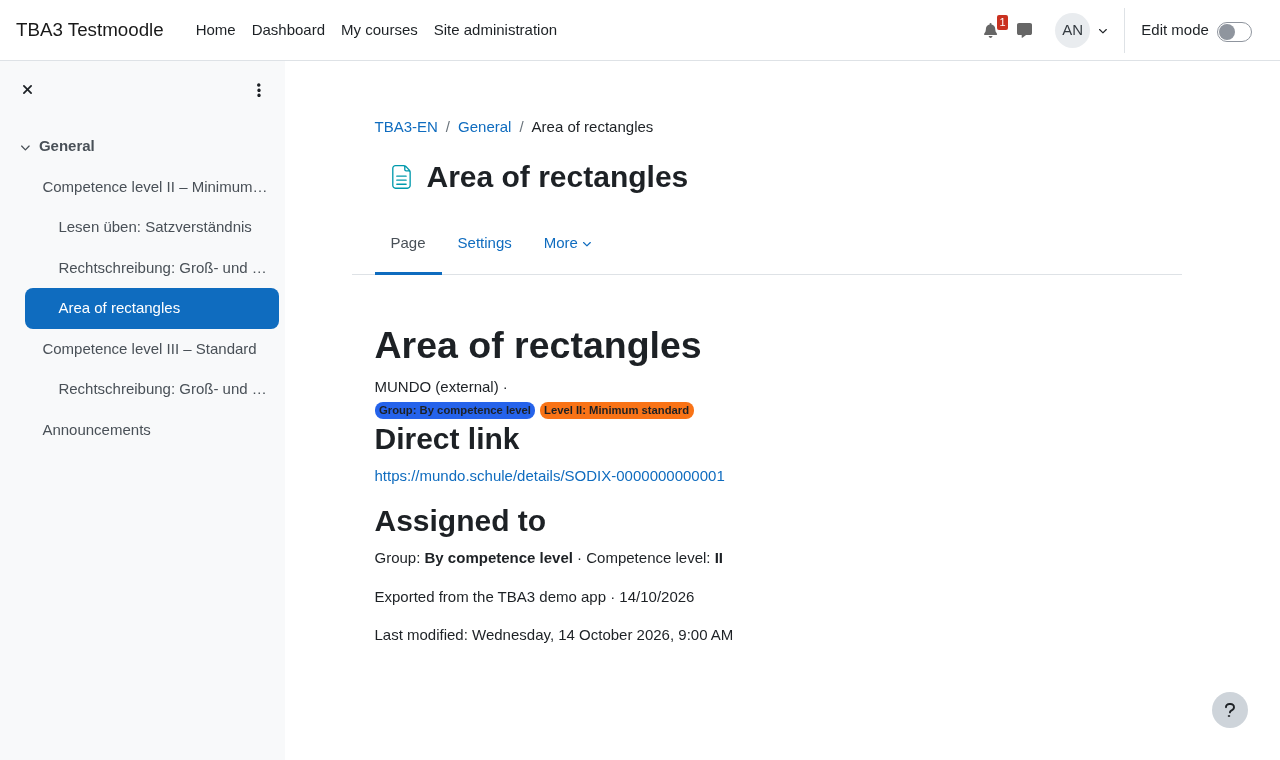
| In the cartridge | In Moodle |
|---|---|
Group (By competence level) |
a line of text at the top of the "General" section |
| Competence level | text and media area (label) as a heading |
Material (webcontent, HTML) |
"Page" activity |
| LOM title and description | not shown |
To smooth out before real use; none of them prevents the import:
- Everything ends up in one section. Moodle does not turn the levels of the structure into course sections but into headings within "General".
- "Folder" appears before each level. Moodle's converter puts a folder icon in front of the label, and the image for it is missing in Moodle 4.5. So what you see is the alt text. This is down to Moodle, not the cartridge.
- Part of the page design is lost. Moodle takes over the content of the pages but not their embedded stylesheet. The coloured tags remain; spacing and boxes do not.
Other learning platforms (itslearning, Canvas, ILIAS, the states' own platforms) were not tested. Common Cartridge 1.1 is considered the most widely supported version, so an import there is likely, but not proven.
What the cartridge does not do
- It does not contain the material. Each page points to a material that lives elsewhere. For MUNDO that is the detail page in the media library; for the demo application's sample materials it is a placeholder address. A cartridge can also carry files and tasks (QTI), but for that the application would have to own the material itself.
- In level mode it names no learning group. The group is then called "By competence level", not "3a German". The teacher names the course during the import.
- It assigns nothing to anyone. In Moodle the levels become headings, not groups. Who gets which material has to be set again there by the teacher, for example with groups and restrictions. Personal data is deliberately not in the file.
- It is a copy. If the assignment changes in the report, the course stays as it was imported. A live connection between report and learning platform would be LTI, not Common Cartridge.
Route 2: PDF for paper and filing
The same export box creates a PDF: one page per group, with the materials by competence level, each as a card with type, duration, description, target levels, address and QR code. The PDF is created with jsPDF in the browser, also only loaded on click.
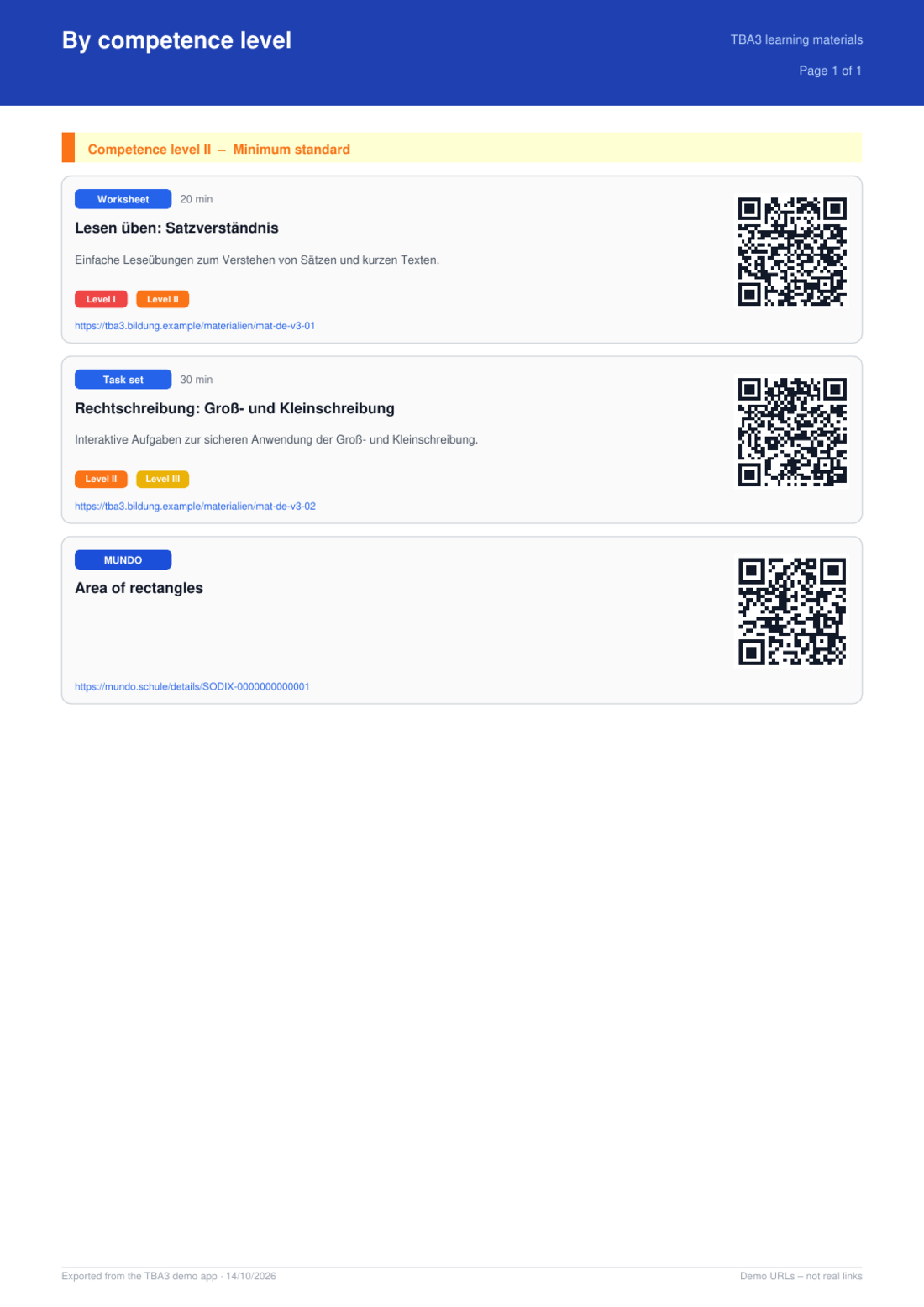
The PDF is meant for parent meetings, the form teacher's folder or the colleague who has no access to the report. It needs no learning platform and no permissions there. The QR code takes students from the worksheet to the material. How the file is built (font, page breaks, QR codes, and why none of it happens on a server) is described in detail in the demo application recipes.
There is also a second PDF, the individual report for a single person, created from the data sheet in the "Students" tab. It contains the level reached, the results by sub-area and the matching materials.
Both routes side by side
| Common Cartridge | ||
|---|---|---|
| For | the learning platform | paper, filing, passing on |
| File | .imscc (ZIP with manifest and HTML pages) |
.pdf, one page per group |
| Order | group → competence level → material, as headings in Moodle | group → competence level → material, as sections |
| Material | as a page with a link, not the material itself | as a card with link and QR code |
| Further editing | yes, in the course on the learning platform | no |
| Needs | permission to restore in the course | nothing |
| Checked | import into Moodle 4.5 | E2E test: the file arrives |
| Personal data | none | none (the individual report carries the name) |
What follows
- Handing over to the learning platform is feasible with an open standard, without an interface to the platform and without a server. For Moodle this is now proven.
- Common Cartridge 1.1 is the right version. The newer 1.3 adds nothing for this content and locks Moodle out. Anyone developing the export further checks every change with a real import, because a cartridge that is merely well-formed can still be rejected.
- The cartridge would be better with web links instead of pages. Common
Cartridge has web link resources of its own (
imswl), which Moodle creates as a "URL" activity. One click would then lead straight to the material instead of to a page with a link. The assignment to the level would not be lost, because the level is already in the structure. - The export should pass on the name of the learning group. "By competence level" as a group name is a quirk of the demo application, not a limit of the format.
- Only with material the application owns does the cartridge carry content. This is the same limit as with the media libraries: as long as material is known only as a reference, even the best handover can only hand over references.